Email Transport Adaptor
| Transport ID | Source | Requirements | Optional |
|---|---|---|---|
email | email.py | - | SMTP Integration, Google Mail Integration |
Can be used for plain or HTML template emails, and handle images as attachments or embedded HTML.
Discovery
Default delivery. If an HA smtp (or compatible notify-platform) integration is already configured and no email delivery is defined, a email delivery is generated automatically and fires on every notification.
Example
- action: supernotify.notify
  data:
    message: "Motion detected at the front door"
    priority: high
    target:
        - homeowner@example.com
Pre-generated HTML
The notification can have a message_html supplied for html that will be used in place of the standard message for HTML emails and ignored for other notification types. This does not require templates, see the Restart Email Recipe for a simple example. In this case, HTML will automatically be tagged onto the end to include any attached images. It can be set in fixed configuration, in the data of a delivery or scenario, or as message_html in the action call.
HTML Templates
HTML templates use the standard Home Assistant Jinja2 Templating with access to entity states, additional filters etc.
Padding to nudge e-mail clients from reading too deeply into the e-mail for in-box summaries can be tuned with preheader_blank and preheader_length configuration in the transport options. The other useful option is strict_template to switch on or off the stricter Jinja2 template validation.
Configuration
Supernotify ships with a built in template, default.html.j2 which can be used by setting template: default.html.j2 on the delivery. This shouldn't be edited directly, since changes will get overwritten by future releases. Instead, write your own, or amended versions of default.html.j2 and put it into a custom template directory, usually inside Home Assistant's \config directory. Templates can live in this directory, or in an email subdirectory ( the top-level is for templates that could be used with any transport, and email only for this one).
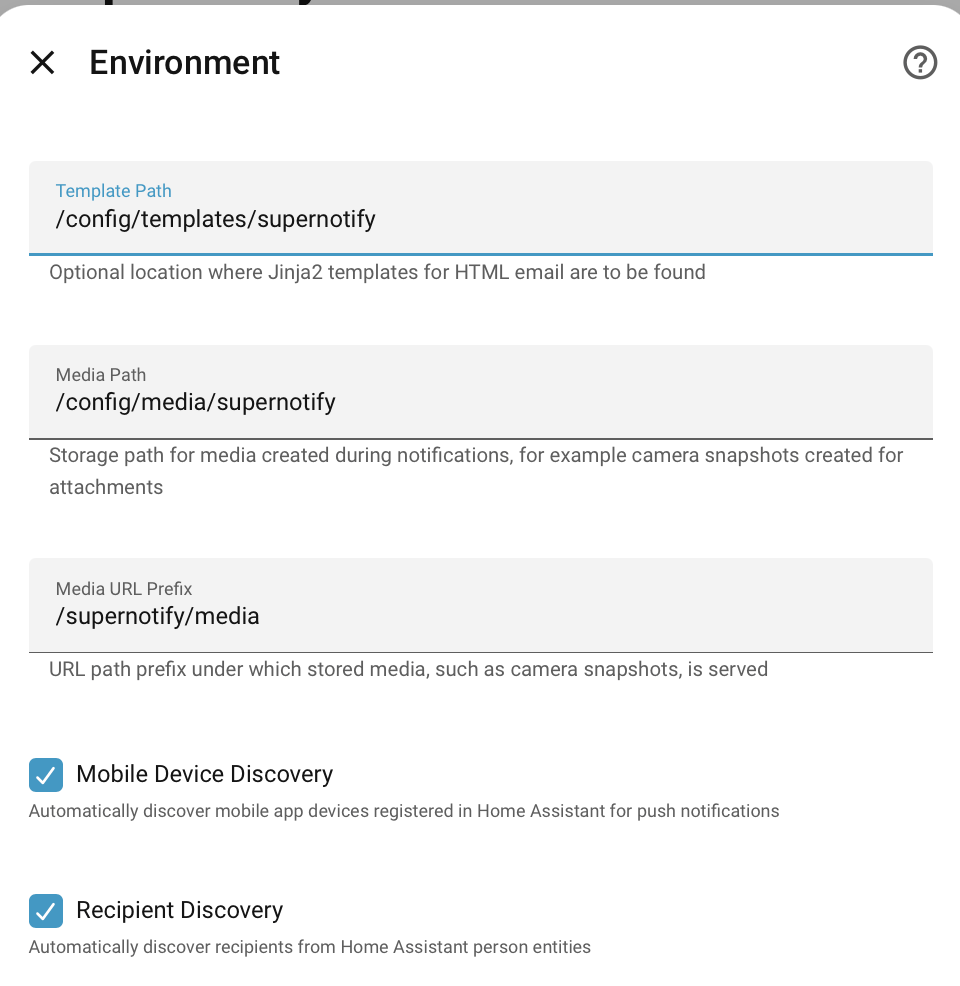
Once a template is in that directory, set it as the template of an email delivery, and select that delivery when sending a notification:
supernotify:
  delivery:
    back_door_email:
      transport: email
      template: back_door.html.j2
- action: supernotify.notify
  data:
    title: Motion at the back door
    message: Motion has been detected at the back door
    target:
      - homeowner@example.com
    delivery: back_door_email
Template Variables
Supernotify also adds an alert variable for context of the current notification, with these values:
| Attribute | Description |
|---|---|
| message | Notification message |
| title | Notification title |
| preheader | Invisible div contents at top of html used to show info below heading |
| priority | Notification priority |
| envelope | Delivery Envelope (complex nested object) |
| subheading | Defaults to "Home Assistant Notification" |
| server | Access to name,language,internal_url and external_url of this HomeAssistant server |
| preformatted_html | HTML supplied to the notify action, for example by an Automation |
| action_url | Action URL for mobile action |
| action_url_title | Title for the Action URL |
| img | Snapshot image attachment, with url and desc fields |
The preheader defaults to a minimum 100 characters packed with ͏‌ to force e-mail clients not to dig into the message contents when showing a preview in the in-box.
Image Attachments
Where the image is snapped rather than being only a URL, it will be included as an attachment and an cid:XXXX URL generated to point to the attachment name.
Info
The additional data options for Google Mail (cc,bcc,from) are not yet supported.
Default Delivery
A default Delivery called email will be automatically generated for Email transport if no explicit ones created, using the first available SMTP integration if one is present. If you don't want to use it, then use configuration as below, or configure your own delivery for the transport.
Direct Connection
By default, Supernotify now uses its own SMTP connection rather than the Home Assistant one, since the standard is planning to lose ability to handle e-mail addresses dynamically (all e-mails must be pre-wrapped as Notify Entities) and its missing features like access to e-mail priority.
If you already have the SMTP integration installed, Supernotify can reuse the connection details automatically if it was set up from the UI (but not if its defined in YAML). Or you can skip that altogether and use the connection section of the Supernotify transport to define it directly.
If you really want to use only the native Home Assistant integration, then override the defaults using mode: ha_smtp in the options section of a delivery or transport, see section below on configuring.
Configuring
By default, the OPTION_MODE option is set to direct, so deliveries go through Supernotify's own SMTP capability rather than the Home Assistant notify integration. This can be set at transport level or at delivery level (if you have multiple email deliveries, such as HTML and plain).
transports:
    delivery_defaults:
      options:
        mode: direct
        sender: hass@mail.barrsofcloak.org
        sender_name: Home Assistant
This avoids using the built in Home Assistant SMTP Integration, with the same functionality except no overhead of pre-registering email addresses, introduced in mid-2026 Home Assistant as part of the Notify Entity integration.
In addition to reverting to the previous simpler Home Assistant usage, it also offers:
Priority
Envelope priority is mapped to common header fields used for internet mail:
- Priority
- Importance
- X-Priority
- X-MSMail-Priority
Message-ID
Message-Id in email header ties back to notification ID and delivery name. (Your mail relay may override this).
Example Config
Connections default to STARTTLS over port 587, though can be changed to other ports or without encryption. This will work with Amazon SES, local mail relays etc.
connection is only used by deliveries that set mode: direct - other email deliveries on the same transport can still go via an action as normal.
transports:
  email:
    connection:
      host: smtp.local.net
      port: 587
      encryption: starttls
      username: postie
      password: blackandwhitecat
      verify_ssl: false
    delivery_defaults:
      options:
        sender: hass@local.net
        sender_name: Your Friendly Home Assistant
        default_title: Home Assistant Notification

delivery:
  direct_mail:
    transport: email
    options:
      mode: direct
    target: mailarchive@mymail.com
In addition, all of the other email options are available, such as for tuning PNG attachments or preheaders for message previews.
Reusing the Home Assistant SMTP Integration Configuration
If no connection block is configured, this transport falls back to the connection details (server, port, encryption, username, password, verify_ssl, sender, sender name) from a configured SMTP Integration config entry, so you don't have to duplicate credentials. This only applies to ConfigFlow (UI) based SMTP integration setups, not the legacy YAML platform: smtp style. Omit connection entirely to use this.
Roadmap
Initially this only preserves the original easier to use functionality of Home Assistant SMTP prior to the enforcement of pre-registering every e-mail address as an entity, and mapping envelope priority to common headers.
It is anticipated that this will also open up more features, such as modern email features like DKIM.