Notification Archiving
Debugging notification rules, scenarios etc is much easier when each notification, complete with its debug trail, is archived.
This preserves not just the notification data, but also key context like occupancy, and the decisions made on which scenarios and deliveries to select, and what happened to each delivery.
Archiving is set up in the Supernotify integration's options, under Settings → Devices & services → Supernotify → Configure → Archive, and can go to any of:
- Files, one per notification, which can be searched with the
enquire_archiveaction, and which Supernotify's assistant tools use to answer questions about recent notifications - An MQTT topic
- Home Assistant events, for example for Remote Logger to send to an OpenTelemetry or Syslog service
Archiving has to be enabled for any of these, including events.
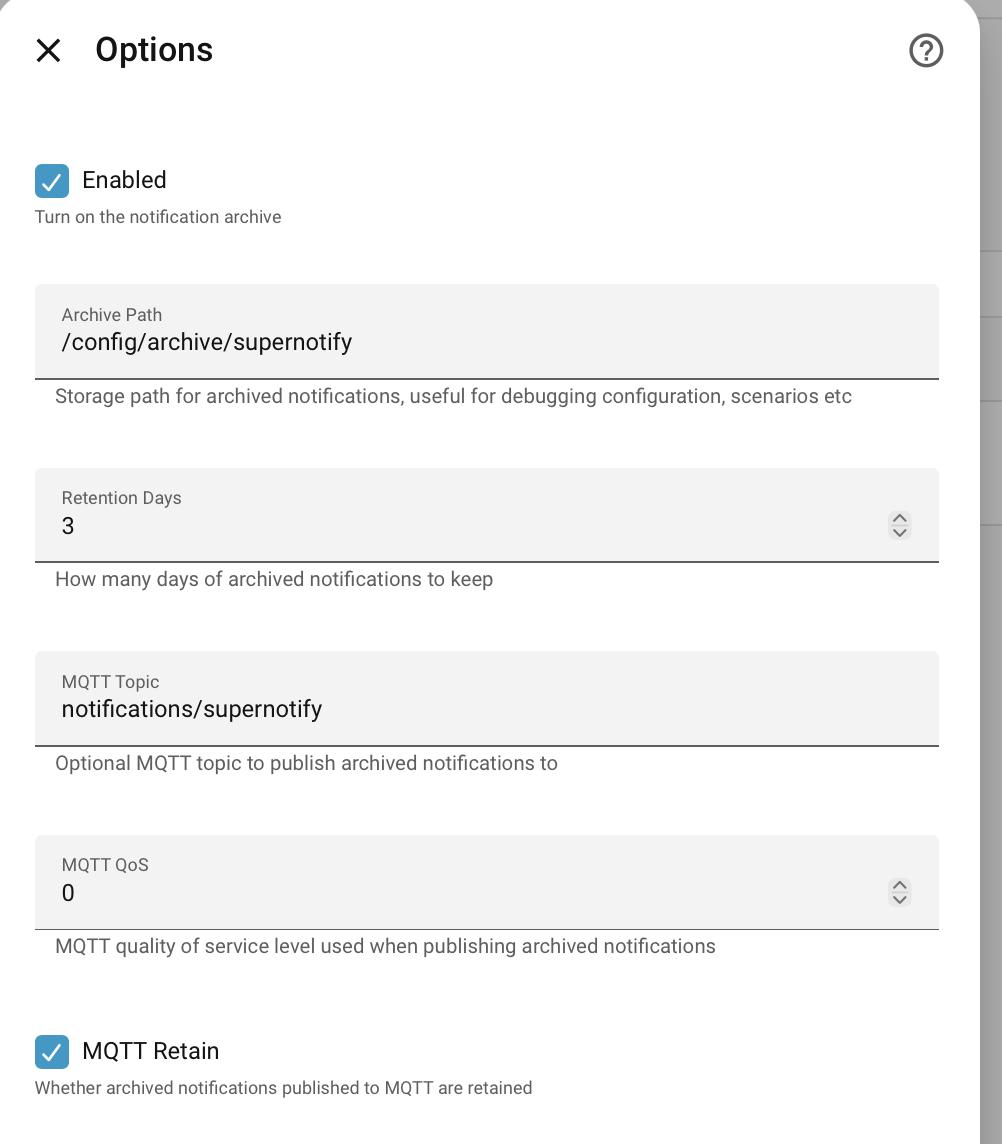
Options
| Option | Default | Usage |
|---|---|---|
enabled | off | Turn on archiving |
file_path | supernotify/archive | Directory for the archive files, relative to the Home Assistant config directory unless absolute |
file_retention_days | 3 | Days to keep archive files before the nightly housekeeping removes them |
mqtt_topic | none | MQTT topic to publish each notification under, as <mqtt_topic>/<file name> |
mqtt_qos | 0 | MQTT quality of service |
mqtt_retain | off | Publish as MQTT retained messages |
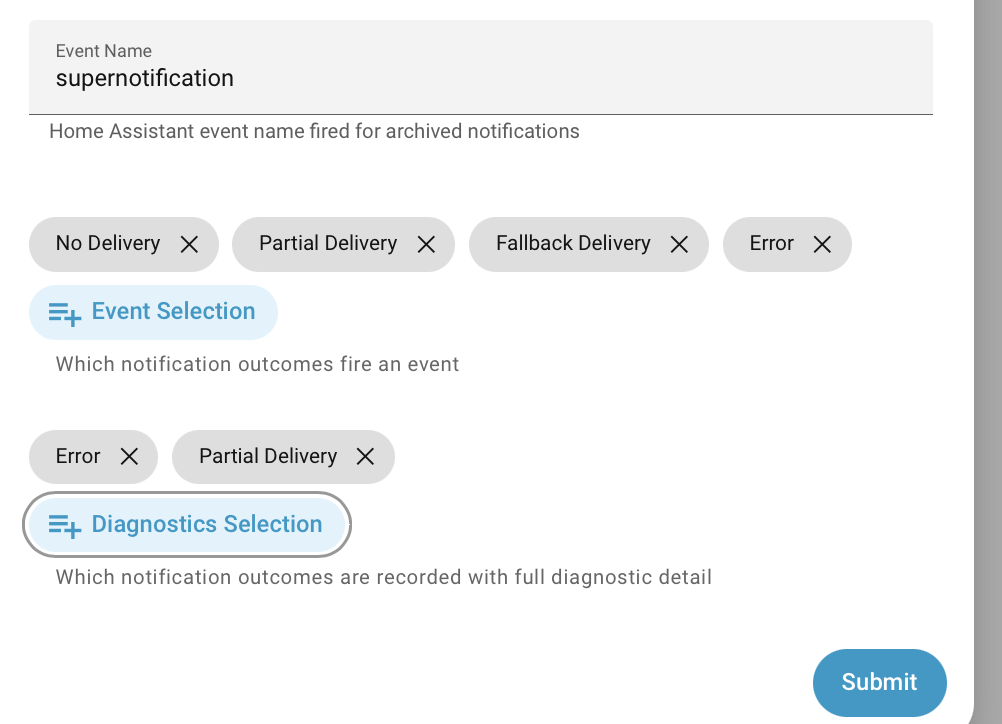
event_name | supernotification | Home Assistant event type to fire |
event_selection | none | Which notification outcomes fire an event, see Outcomes |
diagnostics | ERROR | Which notification outcomes are archived with full diagnostic content, see Outcomes |
MQTT retained messages
With mqtt_retain on, the broker keeps one retained message per notification, under its own topic, until something clears it. Supernotify's housekeeping only removes archive files, not MQTT messages, so leave mqtt_retain off unless something else clears them.
The options are only set in the integration's options. An archive: section in the top-level supernotify: YAML is ignored, with a repair raised to say so. An archive: in the old notify: - platform: supernotify YAML is only used to fill in the options once, when migrating from Supernotify v1.
If file archiving is on but its path can't be created or written to, a repair is raised naming the path and the error, and cleared once Supernotify is reloaded with a path that works.
Archive Files
Each notification is a JSON file named for the local time it was created, to the minute, and its id, for example 2026-10-30T05-57_6f129330-d461-11f1-9aab-3343dedd5bbc.json. A housekeeping job runs each night to remove files older than file_retention_days, and the purge_archive action can do it immediately, with days: 0 removing everything.
Tip
Use the Studio Code Server Home Assistant app to search and browse the archive files, or the enquire_archive action to search them by date, outcome or priority.
Key fields to check if something doesn't seem right:
outcome- what happened overall, one of the outcomes belowselected_deliveries- what was selected by the action, scenarios or delivery configurationdelivery_provenance- which source switched each delivery on or off:default,call,scenario:<name>orrecipient:<name>, underenabled_by/disabled_bydeliveries- what happened to each delivery:success,errororsuppressedfor each message sent, with the action calls made and any that failed, orskippedwith the reason if nothing was senttarget- the target the notification asked for, with recipient notify entities turned into their recipientunassigned_targets- targets asked for that no delivery sent to, including recipients none of whose own targets were usedenabled_scenariosandoccupancy- the scenarios that applied, and who was in or out
Diagnostics
An archived notification can be a record of the key details, or have the full diagnostic content as well, including its debug_trace. diagnostics chooses which outcomes get the full content, by default only those with an error. A notification sent with debug: true always gets the full content, whatever diagnostics is set to.
Event Generation
Home Assistant events can be fired for notifications, carrying the same content as the archive file. These can be used to trigger automations, or sent elsewhere by Remote Logger. Choose which outcomes fire an event with event_selection, which by default is none.
Home Assistant's recorder saves events to its database, so an event for every notification with full diagnostics can make it grow quickly. Exclude the event type from the recorder if it's only needed live:
See the Otel Event Recipe for more.
Outcomes
event_selection and diagnostics take any combination of:
| Outcome | Usage |
|---|---|
SUCCESS | Delivered, with no errors, misses or suppressions |
NO_DELIVERY | Nothing delivered, with no errors |
PARTIAL_DELIVERY | Some deliveries made, others missed |
FALLBACK_DELIVERY | A fallback delivery made, after an error or with no other delivery applying |
ERROR | At least one delivery error |
DUPE | Nothing delivered, since it was a duplicate of one recently sent |
ALL | Every notification, whatever the outcome |
Selecting none means no notification - no events, or no full diagnostics.
Example Notification
A notification with a single delivery, as archived without full diagnostics:
{
  "id": "6f129330-d461-11f1-9aab-3343dedd5bbc",
  "outcome": "success",
  "created": "2026-10-30T05:57:16.559931+00:00",
  "title": "Security",
  "message": "Front door opened",
  "priority": "high",
  "target": null,
  "stats": {
    "total_duration_ms": 1.0,
    "slowest_delivery": "dummy",
    "fastest_delivery": "dummy",
    "delivery_success_rate": 1.0
  },
  "delivered": 1,
  "failed": 0,
  "suppressed": 0,
  "skipped": 0,
  "missed": 0,
  "fallback": 0,
  "error_count": 0,
  "dupe": false,
  "force_resend": false,
  "delivery_selection": "implicit",
  "delivery_overrides": {},
  "selected_deliveries": {
    "dummy": null
  },
  "delivery_provenance": {
    "dummy": {
      "enabled_by": ["default"]
    }
  },
  "applied_scenario_names": [],
  "constrain_scenario_names": [],
  "required_scenario_names": [],
  "enabled_scenarios": [],
  "selected_scenario_names": [],
  "delivery_exceptions": {},
  "uncategorized_targets": {},
  "unassigned_targets": {},
  "deliveries": {
    "dummy": {
      "success": [
        {
          "target": {},
          "delivery_name": "dummy",
          "notification_id": "6f129330-d461-11f1-9aab-3343dedd5bbc",
          "priority": "high",
          "data": {},
          "id": "6f129330-d461-11f1-9aab-3343dedd5bbc_dummy",
          "message": "Front door opened",
          "title": "Security",
          "delivered": 1,
          "error_count": 0,
          "skipped": 0,
          "skip_reason": null,
          "calls": [
            {
              "timestamp": "2026-10-30T05:57:16.563211+00:00",
              "domain": "notify",
              "action": "dummy",
              "action_data": {
                "message": "Front door opened",
                "title": "Security"
              },
              "elapsed": 0.001,
              "debug": false
            }
          ],
          "failed_calls": [],
          "delivery_error": null
        }
      ]
    }
  },
  "original_context": {
    "id": "01M66E5KGF5VPR7AVE73F1TDQK",
    "parent_id": null,
    "user_id": null
  },
  "version": "2.16.2",
  "dry_run": "live",
  "action_groups": [],
  "media": {},
  "debug": false,
  "occupancy": {
    "home": [],
    "not_home": []
  },
  "condition_variables": {
    "applied_scenarios": [],
    "required_scenarios": [],
    "constrain_scenarios": [],
    "notification_message": "Front door opened",
    "notification_title": "Security",
    "notification_priority": "high",
    "occupancy": ["UNDEFINED_OCCUPANTS"],
    "notification_data": {},
    "camera": {},
    "notification_actions": [],
    "notification_action_groups": []
  }
}