What to Do Next
Start with an automation, since that is what notifications are for. The rest are optional, and can be done in any order.
Add a Notification to an Automation
supernotify.notify is an action like any other, so it goes into an automation the usual way. This example sends a notification when a motion sensor in the hallway goes off.
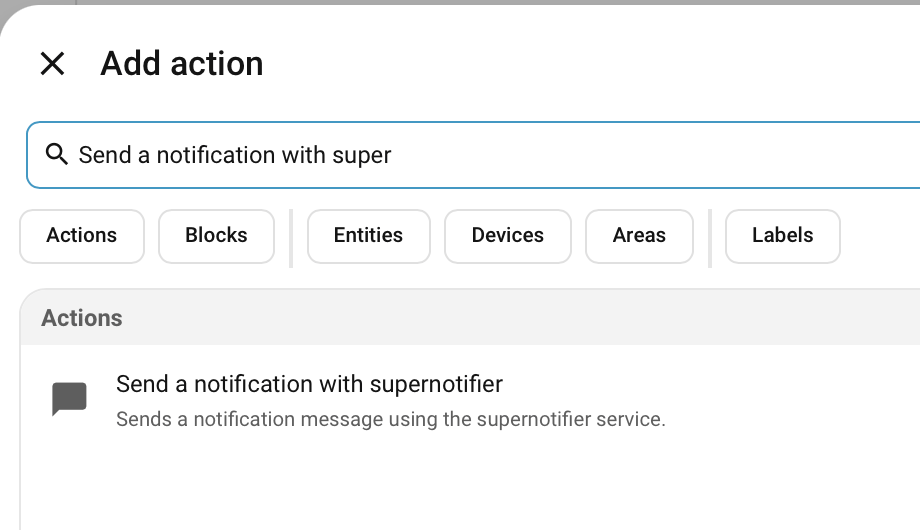
Create an automation, with the motion sensor as the trigger, then choose Add action and search for Supernotify:
Fill in the message, and anything else you want from your first notification, like a target or delivery:
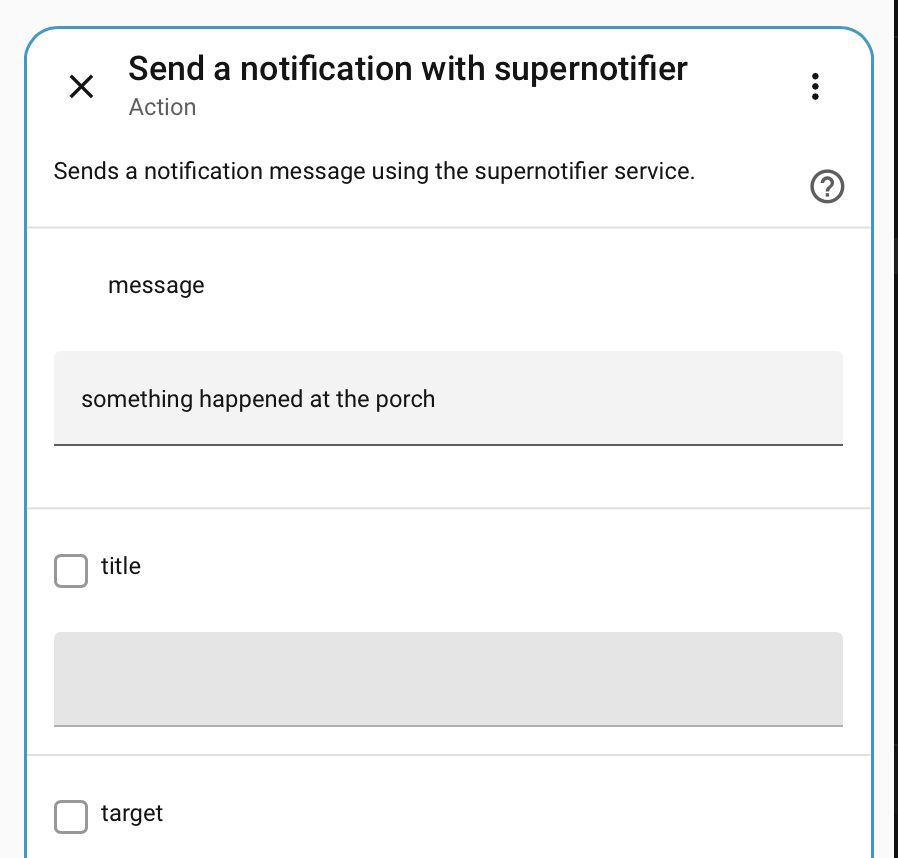
alias: Hallway motion notification
triggers:
  - trigger: state
    entity_id: binary_sensor.hallway_motion
    to: "on"
actions:
  - action: supernotify.notify
    data:
      title: Motion detected
      message: Something is moving in the hallway
      target: person.john_mcdoe
To also hear it on the speakers, add alexa_devices_announce_all and mobile_push as the deliveries. Sending Notifications covers everything else the action can do.
For a fuller worked example, with spoken announcements and a camera picture, see the Someone's at the Door recipe.
Add a Dashboard
Supernotify Cards has lots of focused dashboard cards to control and monitor notifications, send out manually, or test configurations.
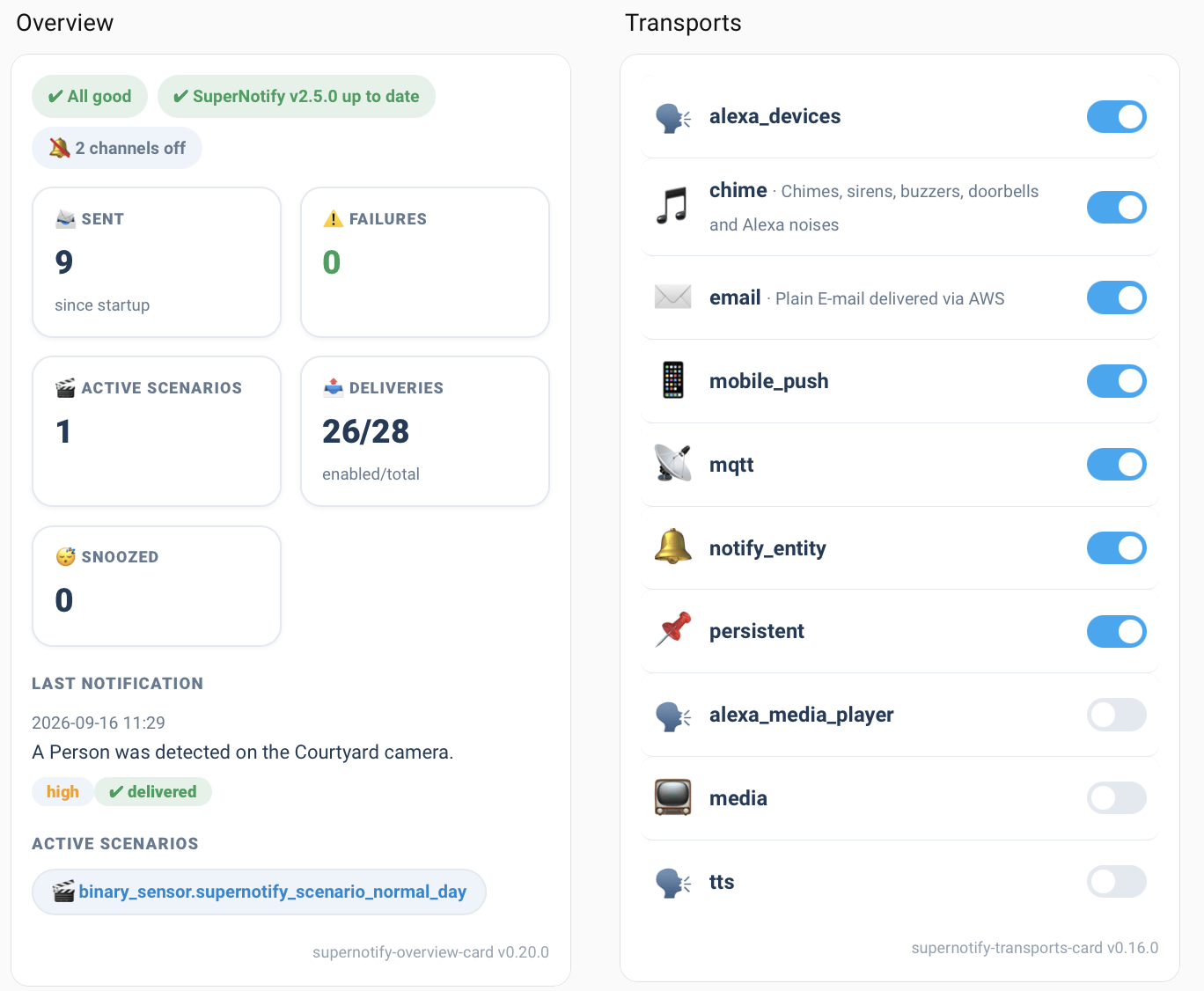
The Dashboard page has a complete example to paste into a new dashboard, which can then be edited visually.
Switch People and Deliveries On and Off
Each person Supernotify knows about has a Home Assistant switch entity, and so does each delivery. Turn one off to stop someone being bothered, or to silence the speakers for a while, without changing any automations.
Notify Just Some Devices
Targets can be an Area, Floor or Label as well as a person or a device, so a notification can go to the speakers downstairs, or to everything labelled for the kitchen. See Targets, and the FAQs for common questions.
Tune the Settings
Archiving, duplicate detection and housekeeping can be changed from the integration's Configure option, in Settings → Devices & Services. See Archiving and Duplicate Detection.
Be Inspired
Find lots of ideas with example configuration in the Recipes.
Go Further with YAML
More is possible with some YAML configuration, and all of it is optional:
- Give people an e-mail address or phone number, in People
- Create your own deliveries, like an HTML e-mail or a fixed set of speakers, in Deliveries
- Change how notifications behave at night, or when nobody is home, with Scenarios
- Attach camera snapshots, in Multimedia
Advanced Concepts explains the ideas behind these, and Configuration is the reference.
Get Help
Ask at the Discussions page, or use an AI agent - see the last answer in the FAQs.